Pony for Android

Give your AI a phone.

Pony lets the AI you already use see your Android screen and tap, type and swipe for you, on Wi‑Fi or cell data. It stops to ask before anything risky, and it can work on a hidden second screen while you keep using yours.

Recorded on a real phone: “check my battery, then open my clock”

Works with

  • Grok Bot
  • Claude
  • ChatGPT
  • Gemini
  • Claude Desktop
  • Cursor
  • Any MCP client

Meet the app

Ask once. Watch it work.

Open Pony and talk or type. Your AI does the tapping, and you watch every step.

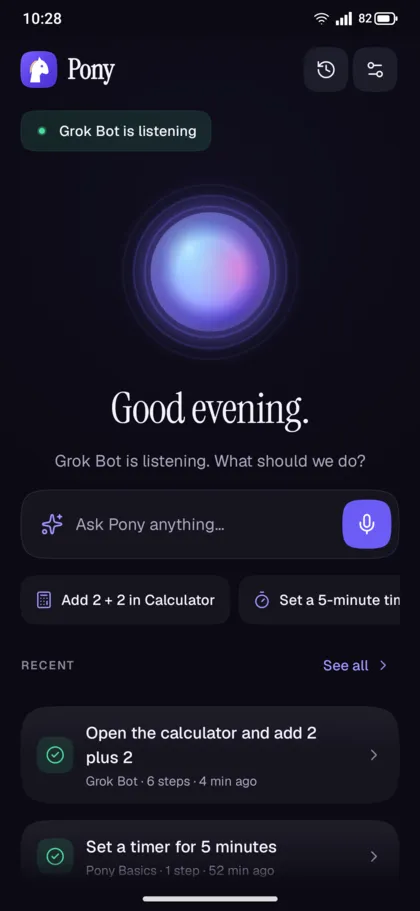
The Pony home screen: a glowing orb, the greeting “Good evening.”, an “Ask Pony anything…” box, suggestion chips like “Add 2 + 2 in Calculator”, and a Recent list of finished tasks.
  • Ask Pony anything. Speak or type a request, or tap a suggestion to start.
  • It asks first. Before anything risky, like sending a message, Pony stops and waits for your yes.
  • Recent runs, step by step. Every task is logged so you can see exactly what happened.

What to ask

Settings, apps, errands. Just ask.

Pony can find a setting and switch it on or off, and drive the apps you already use the way you would: by looking at the screen and tapping. A few things to try.

  • Settings and Clock

    “Turn on Do Not Disturb until 7am and set my alarm.”

    Switches on Do Not Disturb with an end time of 7:00 AM, then sets the alarm in Clock.

    1. Quick Settings
    2. Do Not Disturb
    3. Clock
  • Battery

    “Find which app is draining my battery and restrict it.”

    Reads battery usage to find the top app, then restricts that app's background battery use.

    1. Settings
    2. Battery usage
    3. App battery
  • Privacy

    “Turn off location for apps that don't need it.”

    Goes through each app's location permission with you and switches off the ones that don't need it.

    1. Settings
    2. Location
    3. App permissions
  • Food delivery

    “Find my last Postmates order and reorder it.”

    Opens your past orders, adds the last one again and takes it to checkout. Then it stops and waits for you.

    1. Postmates
    2. Orders
    3. Checkout
    4. Stops and asks: “Pay?”
  • Messages

    “Text my wife I'm 10 minutes late.”

    Finds her conversation and writes the message. Nothing goes out until you say yes.

    1. Messages
    2. Her conversation
    3. Stops and asks: “Send this?”
  • Wi‑Fi

    “Share my Wi‑Fi password as a QR code.”

    Opens your network's share screen so a friend can scan it. If Android asks for your PIN, that part is yours.

    1. Settings
    2. Wi‑Fi
    3. Share
  • Photos

    “Find photos of my daughter from last week and make an album.”

    Looks her up in Google Photos' People, picks last week's photos and puts them in a new album.

    1. Google Photos
    2. People
    3. New album
  • Display

    “Turn on dark mode and make the text bigger.”

    Turns on dark theme, then raises the font size in display settings.

    1. Settings
    2. Display
    3. Font size

Some apps, like many banking apps, block screenshots or won't open on the hidden second screen. Pony tells you when that happens and asks before using your main screen.

How it works

Eyes and hands, on your phone.

Pick the brain you trust. Pony gives it eyes and hands on your phone, and keeps you in charge of anything that matters.

  1. 01

    You ask

    Say it or type it in Pony, or tell your assistant in its own chat.

  2. 02

    It looks

    Your AI reads the text and layout on screen, plus a screenshot when the task needs one.

  3. 03

    It taps

    Pony taps, types, swipes and opens apps. With background mode on, it does this on a hidden second screen.

  4. 04

    It checks with you

    Anything that sends, pays, buys, deletes or calls waits for your clear yes.

See it work

One message. Three jobs.

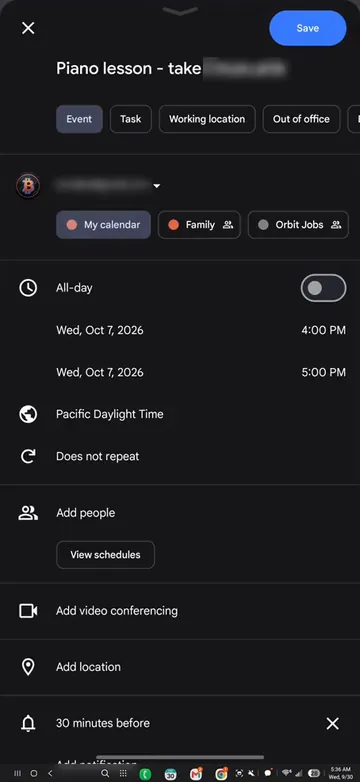
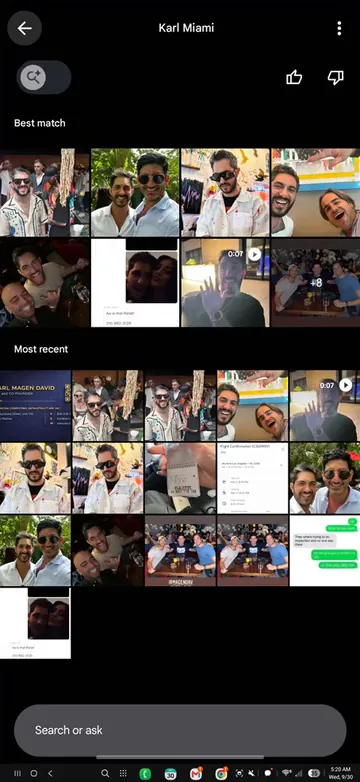
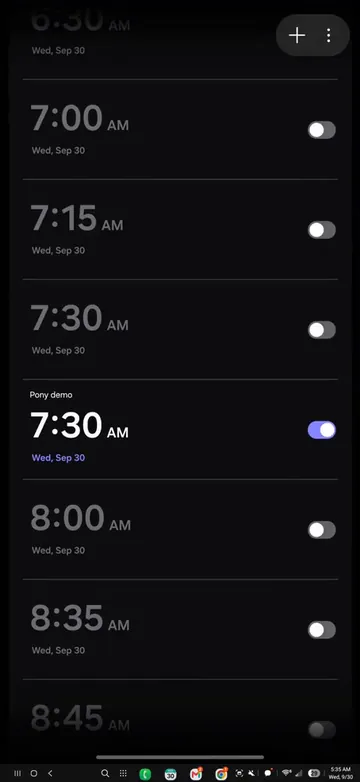
Pony finds photos and emails them, sets an alarm and adds a calendar event on a hidden second screen while the owner keeps using the phone. A real phone, sped up.

The request

“Find my Miami photos and email them to me, set a 7:30 alarm, add piano lesson next Wednesday”

No sound. Recorded on an Android phone.

Three ways to connect

Three ways in. One phone.

Run the brain on the phone with your own key, connect Grok Bot through Pony Cloud, or plug in the MCP agent you already use.

01No computer needed

Your key, on your phone

Add an API key for xAI Grok, OpenAI, Anthropic, Gemini, OpenRouter or any OpenAI-compatible endpoint. Pony runs the agent loop on the phone itself, so no computer is needed.

Your key is encrypted with Android Keystore and never leaves the phone except to talk to the provider you picked, under your own account.
02Default for Grok Bot

Pony Cloud

The default way Grok Bot connects. Your phone and your assistant each dial out to wss://relay.pony.karlmagendavid.com, so it works over cell data with no open ports.

Everything is end-to-end encrypted. The relay only passes sealed messages along and stores nothing. Prefer your own network? Use Tailscale or run your own relay.

03Claude Desktop · Cursor · Claude Code

MCP for your agents

The Pony MCP server gives Claude Desktop, Cursor, Claude Code or any MCP client tools like screenshot, tap, type and open_app.

Pair once with a QR code, check the 6-digit safety code on both sides, and your agent can work on your phone.

MCP setup guide

Built to be trusted

Helpful hands. Your final say.

It asks before anything risky.

Before a tap that sends, pays, buys, orders, deletes, calls, transfers or changes security settings, Pony asks and waits for a clear yes. A maybe is not a yes.

A hidden second screen.

With background mode on, Pony works on a screen of its own so it doesn't take over yours. Some apps, like many banking apps, won't open there. Pony tells you and asks before using your main screen.

Screenshots stay on the phone.

Pony never saves them or uploads them to us. They cross Pony Cloud sealed, and only the AI you chose can open them.

Passwords are off-limits.

Password fields show up as [password] and Pony refuses to type into them. It won't unlock your phone either.

Stop any time.

Say "stop", tap Stop, or Disconnect from the notification. Sessions also end on their own.

Grok Bot template

Set up Grok Bot in one tap. No API key.

The Pony template for Grok Bot pairs over Pony Cloud and walks you through everything in chat. When it's done, your phone says Connected to Grok Bot.

  1. 1

    Open the template

    Start the Pony template in Grok Bot. It explains what Pony can see and waits for your OK.

  2. 2

    Install Pony

    Download the app below, read the privacy promise and switch on Pony control in Accessibility.

  3. 3

    Tap the pairing link

    Grok Bot sends a link or QR code. Accept screen capture, match the 6-digit safety code, and you're in.

  4. Connected to Grok Bot

What's new

Bring any brain. Steadier hands.

Connect Grok Bot, Claude, Gemini, OpenAI or xAI in about a minute, plus pairing that just works, more natural gestures and new ways to stay in control.

0.6.4

Latest
  • Asks before paying

    On payment and checkout screens (Venmo, PayPal, Cash App, Zelle, Google Pay and major bank apps), Pony now asks before every tap, even on an unlabeled icon or a tap by coordinates.

  • Checkouts in other apps

    Checkout pages in other apps are caught the same way when the screen says Pay, Transfer, Send, Checkout or Place order.

  • Waits out rate limits

    If a brain hits a per-minute rate limit, Pony now waits and retries instead of stopping the task, and shows Waiting for rate limit… with the time left.

  • Real limits still stop

    A used-up daily or billing quota, or a rejected key, still fails right away.

0.6.2

  • Pick any brain

    Tap Connect and choose Grok Bot, Claude, Gemini, OpenAI or xAI. Grok Bot pairs as before; the others run right on your phone with your own API key.

  • A key in about a minute

    Each brain opens a short sheet. One button takes you to that provider's API-key page; paste the key and Pony tests it with a quick call before saving it.

  • Disconnect one at a time

    Connected brains show a check and the one in use is marked. Disconnect any of them on its own, or clear everything in Settings with one tap.

  • Keys stay on your phone

    Every key is sealed by the Android keystore on the phone. Your assistant never sees it.

0.6.1

  • QR pairing that just works

    Scanning a pairing code is reliable now, even on bright or glossy screens, with a gentle buzz the moment the camera reads it.

  • Pair with a single tap

    Tap the pairing link on your phone, or paste it in any form. If a link has expired, Pony says so and asks for a fresh one.

  • Disconnect everything

    One button in Settings unpairs your assistant, erases every saved brain key from the phone and stops Pony in the background, after you confirm.

  • Remove one brain

    Take a single brain's key off the phone right from the brain picker, without touching the others.

  • A tidier History

    A paired assistant's steps fold into one clean History entry, and each task shows its before-and-after recap with one-tap undo.

  • Calmer when the network isn't

    If the brain is slow or the connection drops, Pony retries on its own and explains any failure in plain language.

0.6.0

  • More natural gestures

    Press and hold, drag to reorder and pinch to zoom, plus help with the pop-up panels that open over an app.

  • Waits for the page

    Pony waits for a screen to finish loading before it taps, instead of guessing.

  • Remembers what you tell it

    Your name, your usual order. Never a password or a code. Review it anytime in Settings › Memory.

  • Later, or on repeat

    "Every weekday at 8, read my calendar." Manage it in Settings › Scheduled tasks.

  • Across apps

    Carry an address or an order number from one app to the next without losing it on the way.

  • More brains, more control

    Google Gemini joins the brain options, the Enter key works in search boxes, and you can disconnect or switch brains from Home.

  • A fresh look

    A redesigned app with a recap after every task and natural voices first.

Download

Pony for Android.

Pony is free and open source under the MIT license: the app, the relay and the MCP connector are all on GitHub. It installs directly as a signed APK, not from Google Play, and can check for updates itself under Settings.

Install in a minute

  1. Download the APK on your phone and open it.
  2. If Android asks, allow your browser to install unknown apps.
  3. Open Pony, read what it does and agree to the privacy promise.
  4. Turn on Pony control in Settings › Accessibility. On Android 13 and newer, first open Pony's app info, tap the ⋮ menu and choose Allow restricted settings.
  5. Optional: set up Shizuku so more apps can run on the hidden second screen. It's a free helper app, and Pony walks you through it step by step in Settings › Advanced. It uses Wireless debugging (Android 11 and newer).
Available now

Pony for Android · Latest

File
pony-latest.apk
Needs
Android 10 or newer
Signed
Release key, package app.pony.companion
SHA-256
ffe5dab95c3a9e46fc6b25f2ef3b7beb37aa726f4915d114a93dc2c2a62cf172
Download APK · 10.5 MB

Signed with the same release key as earlier versions, so it installs right over them. What's new in 0.6

Size and SHA-256 are for the current release. Every release lists its checksum on GitHub Releases.

FAQ

Questions, answered.

Something else? Write to hello@orbitbuild.com.

Which AIs work with Pony?

Grok Bot works out of the box with no API key, over Pony Cloud. With your own key, Pony runs the agent loop on the phone with xAI Grok, OpenAI (the models behind ChatGPT), Anthropic Claude, Google Gemini, OpenRouter or any OpenAI-compatible endpoint. Agents that speak MCP, like Claude Desktop, Claude Code and Cursor, connect through the Pony MCP server.

Do I need a computer?

No. Grok Bot and the on-phone brain (with your own key) both work from the phone alone. You only need a computer if you want a desktop agent such as Claude Desktop or Cursor to control your phone over MCP.

Does it work away from Wi‑Fi?

Yes. With Pony Cloud, your phone opens an outbound encrypted connection, so it works over cell data and never needs an open port. If you'd rather stay on your own network, choose Private network in Settings › Connection and use Tailscale or your own relay.

Can Pony Cloud see my screen?

No. Screens, commands and replies are encrypted on your phone and opened only by your assistant. The relay just matches a one-time pairing code and forwards sealed messages. It keeps no logs and stores nothing. What the relay can and can't see.

What will Pony ask me before doing?

Anything that sends, pays, buys, orders, deletes, calls, transfers money or changes security settings. Pony asks out loud, such as "Send this?" or "Pay?", and only goes ahead on a clear yes. If you say no, nothing happens.

What is the hidden second screen?

With background mode on (the default), Pony works on a display of its own instead of the screen you're looking at, so you can keep using your phone. Most apps only open there once you set up Shizuku, a free helper app that gives Pony a trusted hidden screen (and Back, Home and Recents on it). Pony guides you through it in Settings › Advanced. Shizuku stops when the phone restarts; Pony's Restart Shizuku button opens it so you can tap Start again. Without Shizuku, Pony still taps, types, swipes and reads the screen, and asks before using your main screen for apps that won't open out of sight. Banking and other secure apps usually refuse even with Shizuku.

Where do my screenshots go?

Pony takes a screenshot only when a task needs one. It isn't saved to your phone's storage and it's never uploaded to us. It goes, encrypted, only to the AI you chose for the task. Apps that block screenshots, like many banking apps, stay blocked.

How do I stop it?

Say "stop" or tap Stop to cancel a task. Tap Disconnect in the app or the notification to end the session. To cut Pony off entirely, turn off Pony control in Settings › Accessibility or uninstall the app.

Is Pony free? Is it open source?

Yes to both. Pony is free, and the Android app, the relay and the MCP connector are open source under the MIT license. Read the code, build it yourself or run your own relay: github.com/oroplex/pony.

Is there an iPhone version?

Not today. Pony is for Android 10 and newer.

Why isn't it on Google Play?

Pony is distributed as a signed APK you install yourself. The app can check for new versions from Settings › Check for updates.

Your assistant is ready. Hand it the phone.